이룸 ELUM 한국어
ELUM

Daily routines,
one action card at a time.

Write one line the way you'd say it, and ELUM turns it into easy picture cards in order. Cards only appear on Elumi's phone after the guardian checks them.

Stuck? See the FAQ or contact us.

01

The guardian writes

Describe the situation the way you'd say it, like “Get ready for school on a rainy day”.

02

It becomes cards

It's split into small steps with a picture and a short sentence. The guardian edits and checks them.

03

Elumi follows along

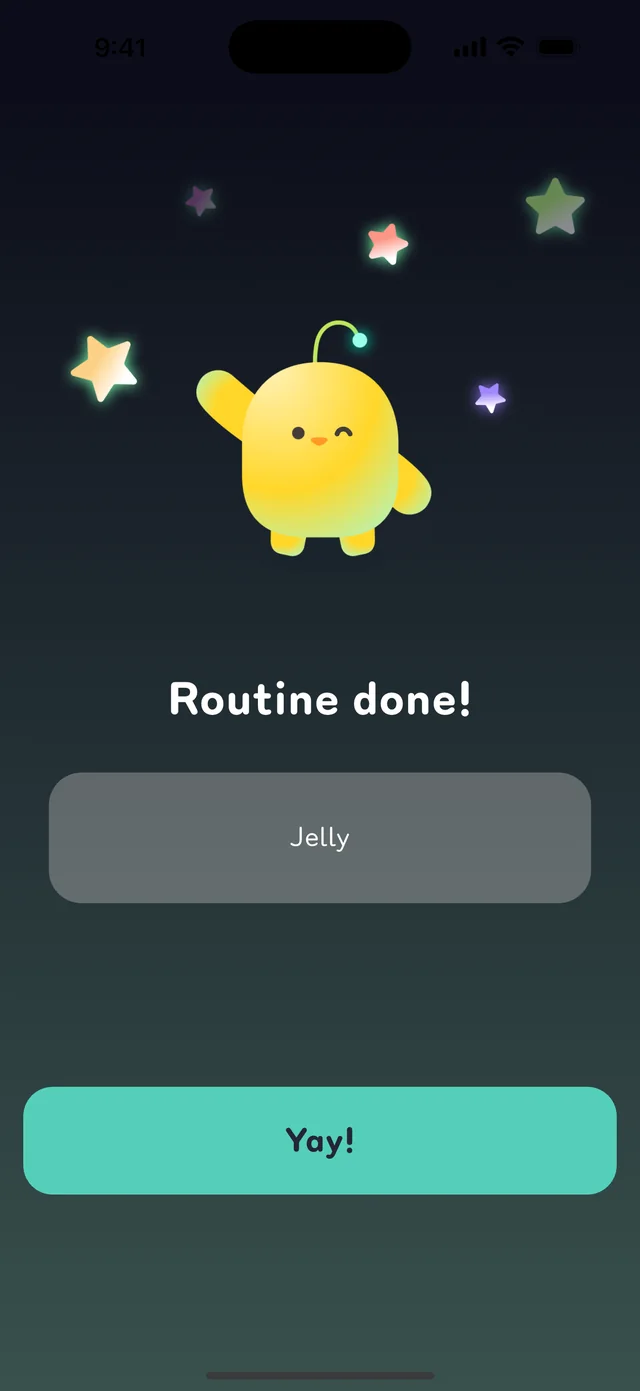
One card at a time, with a check for each. Stars and the promised reward wait at the end.

Features

How ELUM helps every day

Getting ready for school, morning routines, washing and brushing teeth, going out, bedtime — the things you do every day, as a visual schedule.

Action cards

Daily routines,
one card at a time

Pictures and short sentences show today's steps in order
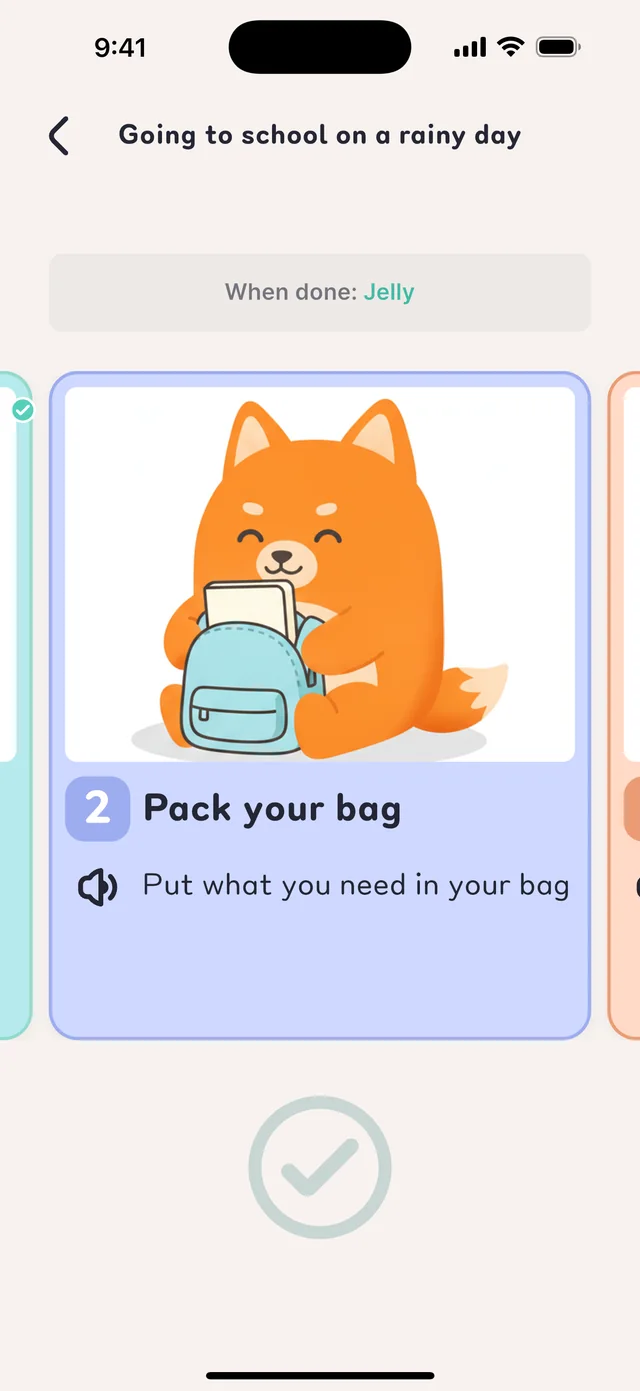
Daily routines, one card at a time
Make a routine

Write one line,
get action cards

Type it the way you'd say it, and it's split into small, easy steps
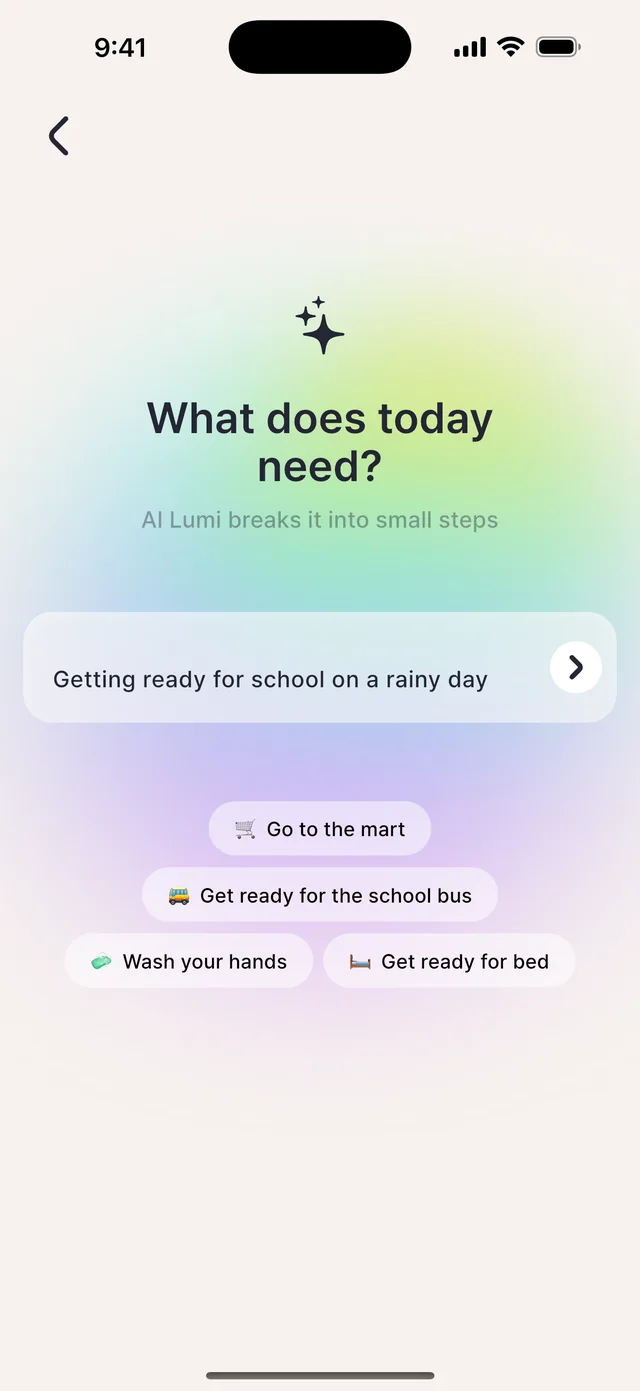
Write one line, get action cards
Guardian check

Only cards you've checked
reach Elumi

Edit pictures and words, reorder steps, or add a card
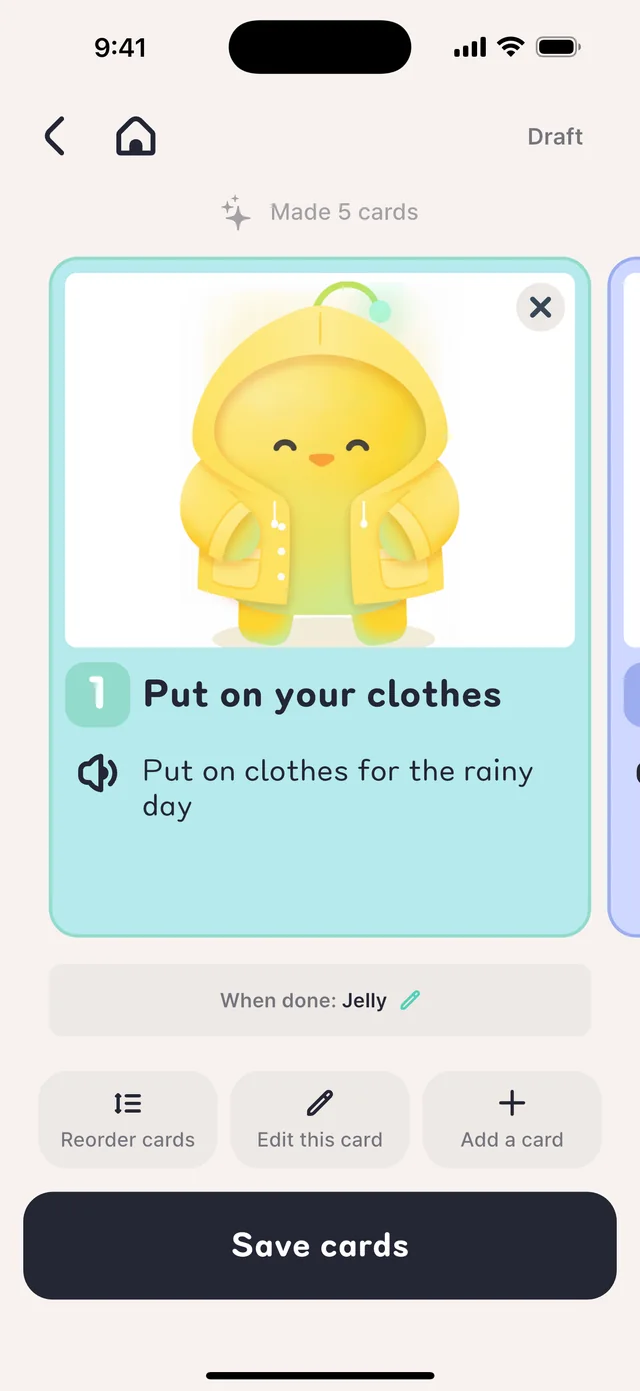
Only cards you've checked reach Elumi
Elumi's screen

Today's steps at a glance
on Elumi's phone

Link two phones and new routines show up right away
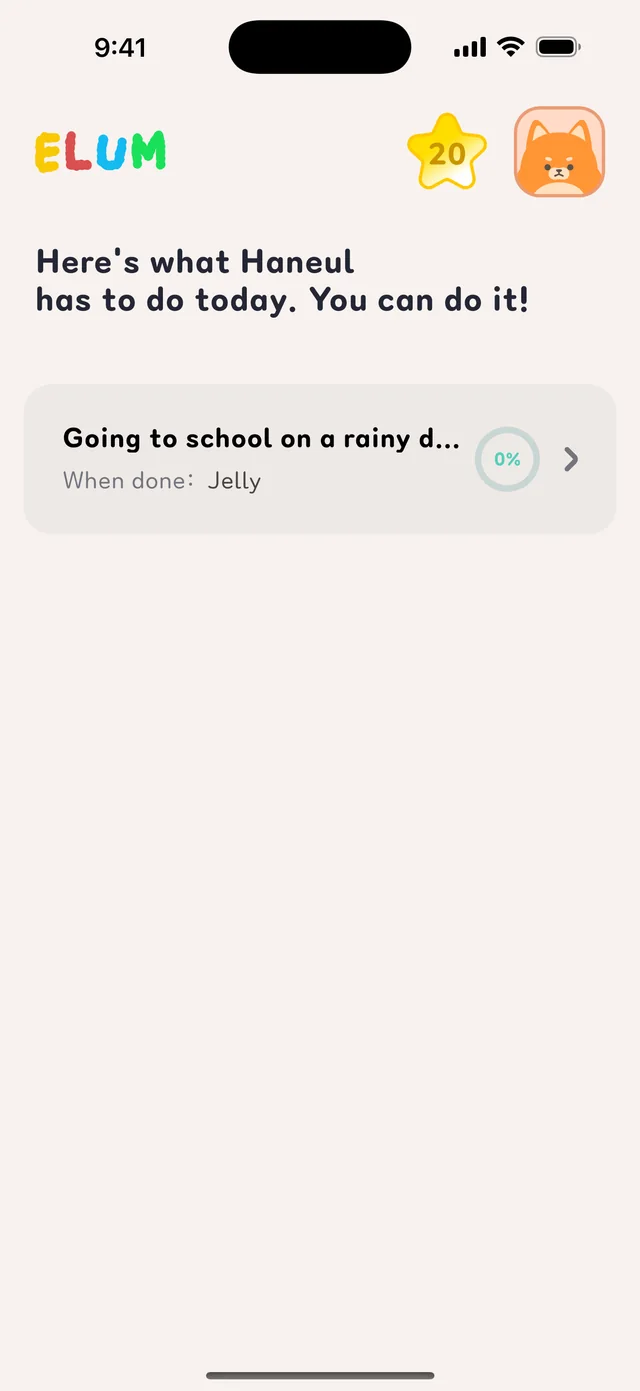
Today's steps at a glance on Elumi's phone
Stars & rewards

A star for each step,
a reward at the end

Lumi, Ruru and Popo cheer along

A star for each step, a reward at the end
Better together

Look after the day
with family and teachers

Invite others to share routines, and reuse past ones in one tap
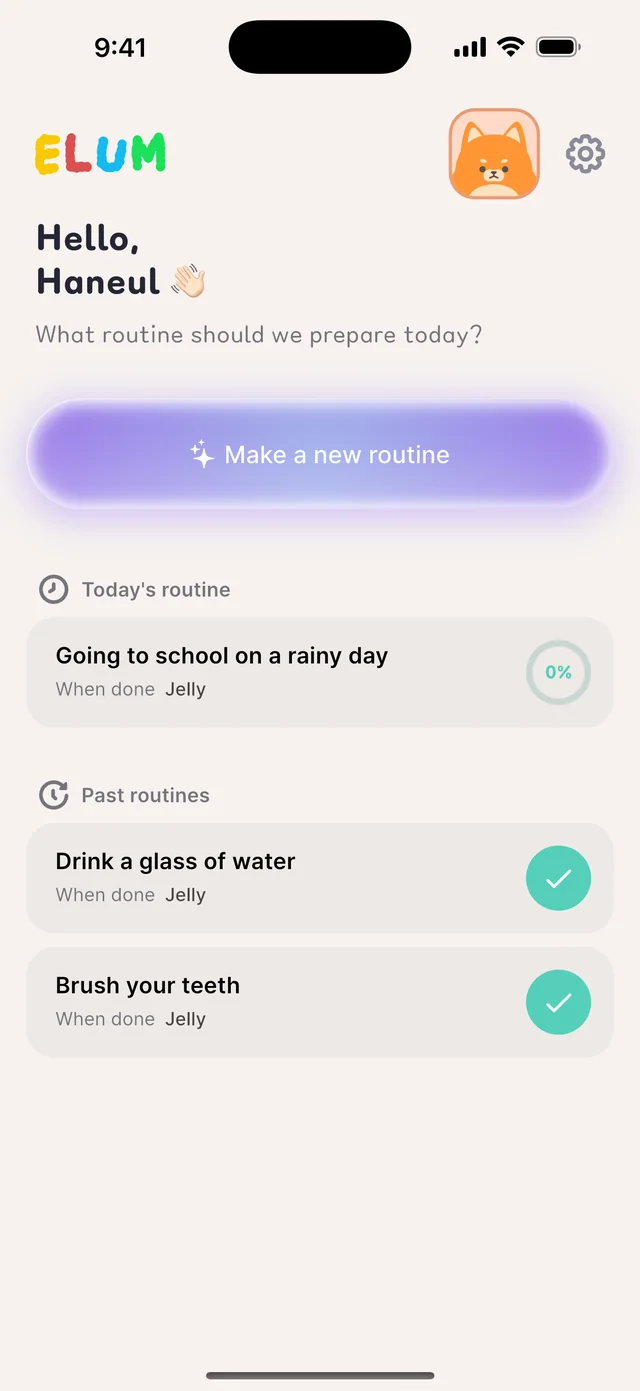
Look after the day with family and teachers

Start today's routine with action cards

Available on the App Store and Google Play.

FAQ

Frequently asked questions

Can't find your answer? Email us below.

Who is ELUM for?
We made it with people who understand pictures and order more easily than text in mind — people with developmental disabilities or on the autism spectrum, people with ADHD or learning disabilities who like to see their steps at a glance — and the guardians and teachers who look after the day with them. We don't divide users by age.
Does it work on both iPhone and Android?
Yes. Get it on the App Store or Google Play. The guardian's phone and Elumi's phone can be different kinds and still link.
Where do I get the link code?
Make a link code on the guardian screen, then enter it on Elumi's phone to connect the two. Forgot it? Make a new one on the guardian screen — the old code stops working from then on.
How do I go back to the guardian screen?
Switching from Elumi's screen needs the passcode you set at the start, so settings can't be changed by accident.
Cards aren't being made
Check your internet connection first. If it still fails, email us the error code shown on screen (for example E-1001) so we can find where it stopped.
The cards read a little odd
Cards are made by AI and only reach Elumi after the guardian checks them. Edit the wording or make them again on the guardian screen.
Where does what I write go?
The situation and answers you write are sent as written to an AI provider to make the cards, so please don't include names, phone numbers, addresses or anything that identifies a person. The text is also kept on the ELUM server so you can review and edit it, and it's deleted when you delete your account. Details are in the privacy policy (Korean).
How do I delete my account?
Tap Delete account in the guardian screen's settings. Routines, Elumi's information and stars are deleted right away and can't be restored. To stop free usage limits from being claimed again, minimal data such as the login identifier and AI usage count is kept for one year and then deleted. To have it deleted sooner, email chan4760@gmail.com. See the account deletion guide (Korean).
Elumi got a new phone
Install the app on the new phone, make a new link code on the guardian screen and enter it.
Contact

Contact

We reply within 2–3 business days.

Email
chan4760@gmail.com

Tap to write an email.

Please include
  • Your phone (iPhone / Android)
  • App version — the ‘App info’ row in settings
  • Which screen it happened on
  • The error code shown on screen